
Follow the steps below to change your OceanXZ account password:
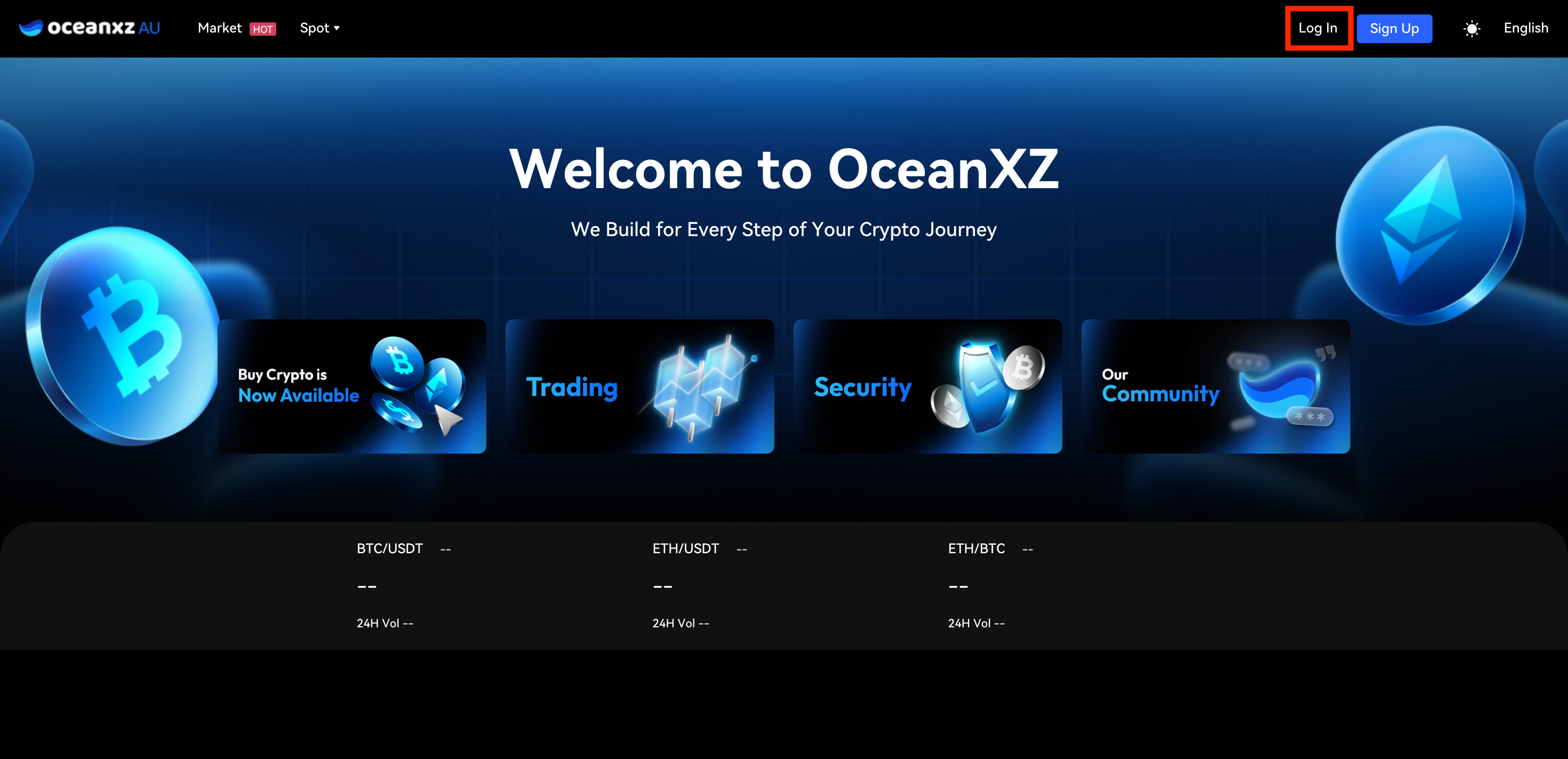
1.Access the Login Page
Go to the OceanXZ website and stay on the login page (homepage).
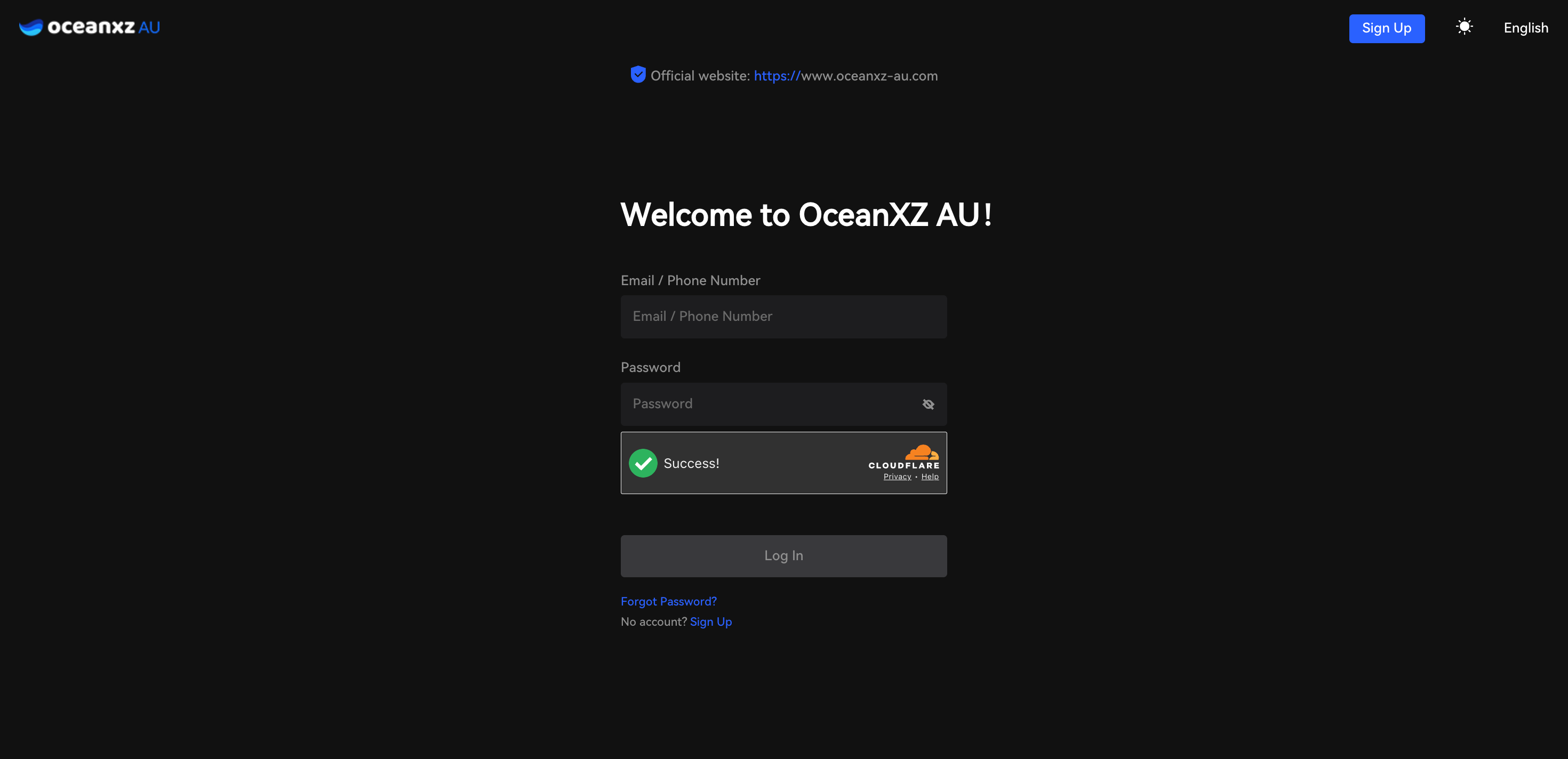
2.Log in to your account
Log in to your account (enter your email/phone number and password)
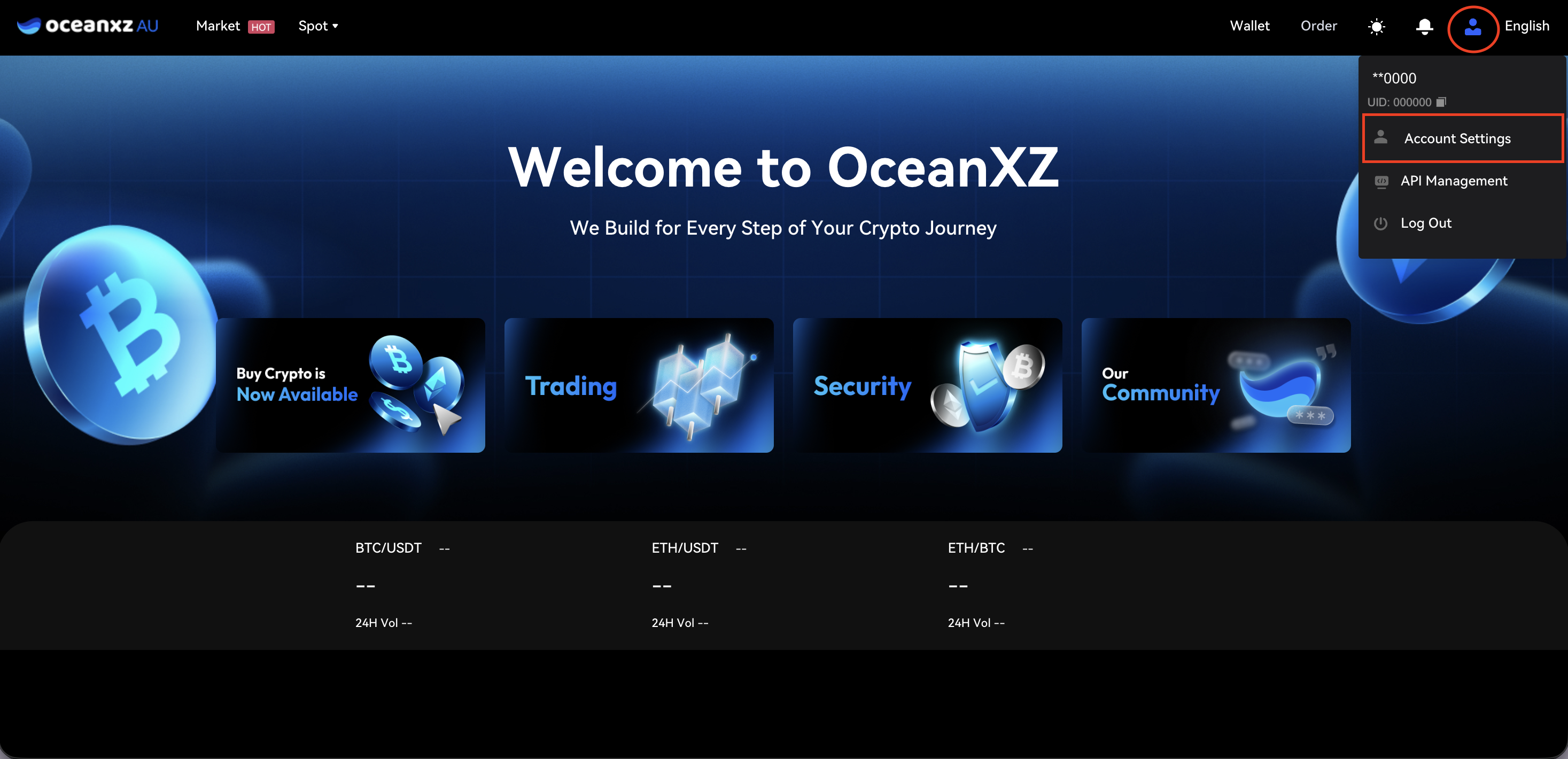
3.Go to Account Settings
Click the profile icon at the top-right corner of the page, then select Account Settings from the dropdown menu.
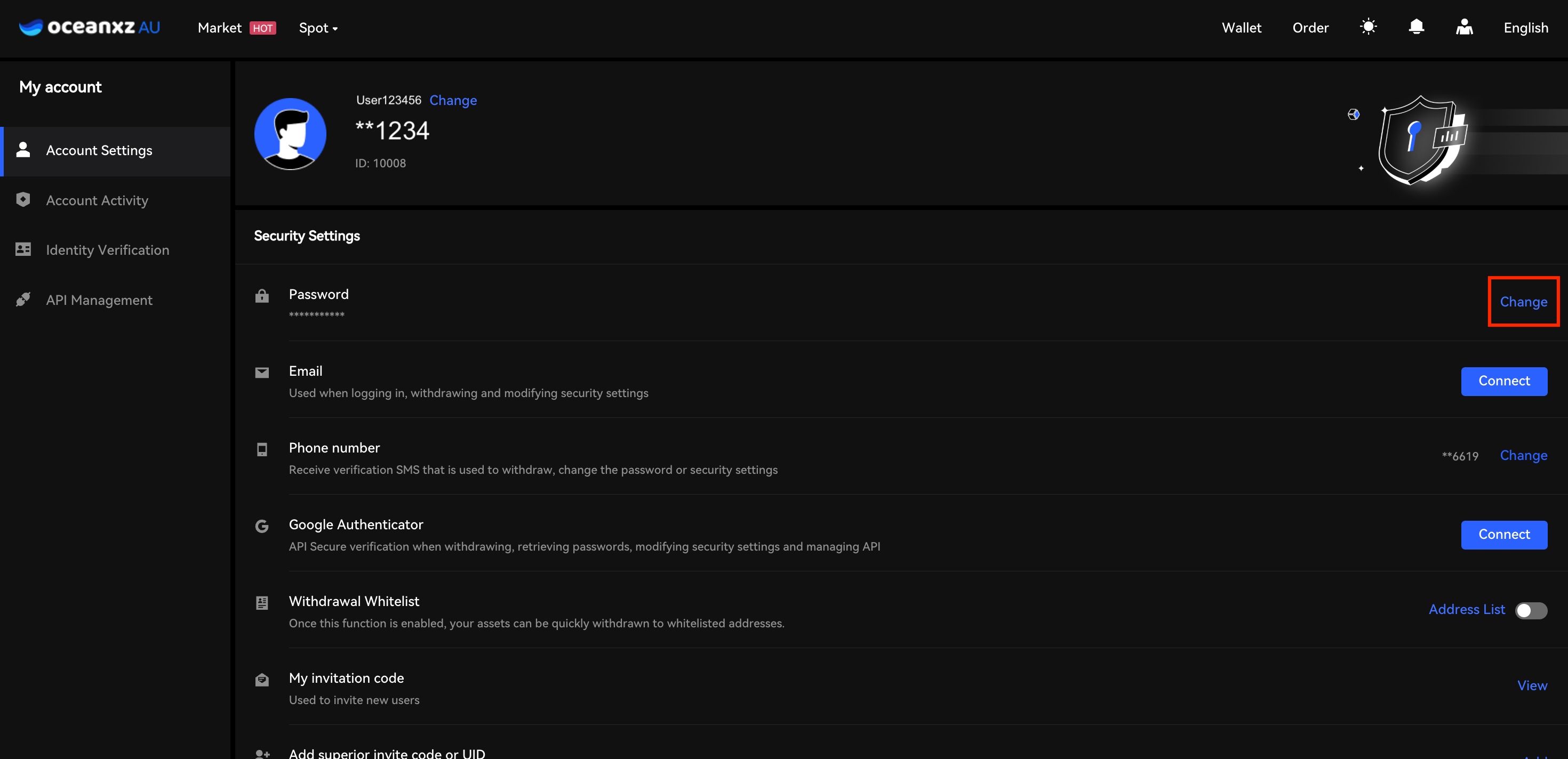
4.Go to "Change Password"
- Click "Change" to update your password
- If you signed up with a phone number, you can proceed directly to Step 4
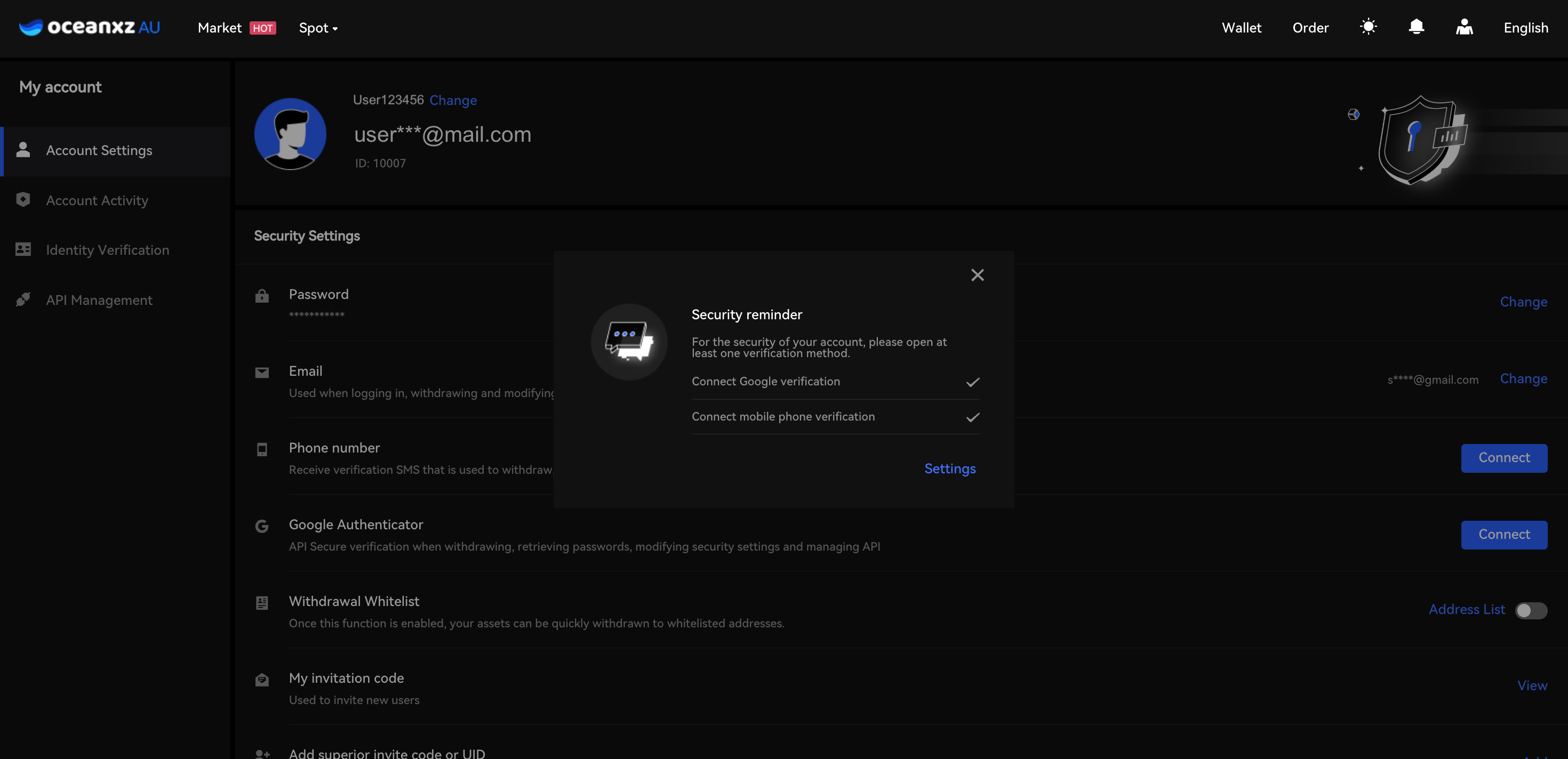
- If you have already enabled Phone Verification or Google Authenticator, you will proceed directly to Step 4.
- If no verification method is enabled, a security reminder pop-up will appear. Please enable at least one verification method before continuing.
To set up verification method:
- Go to Phone Number → Connect to enable SMS verification. View the step-by-step guide here.
- Go to Google Authenticator → Connect to enable Google Authentication. View the step-by-step guide here.
5.Enter Your New Password and Complete Verification
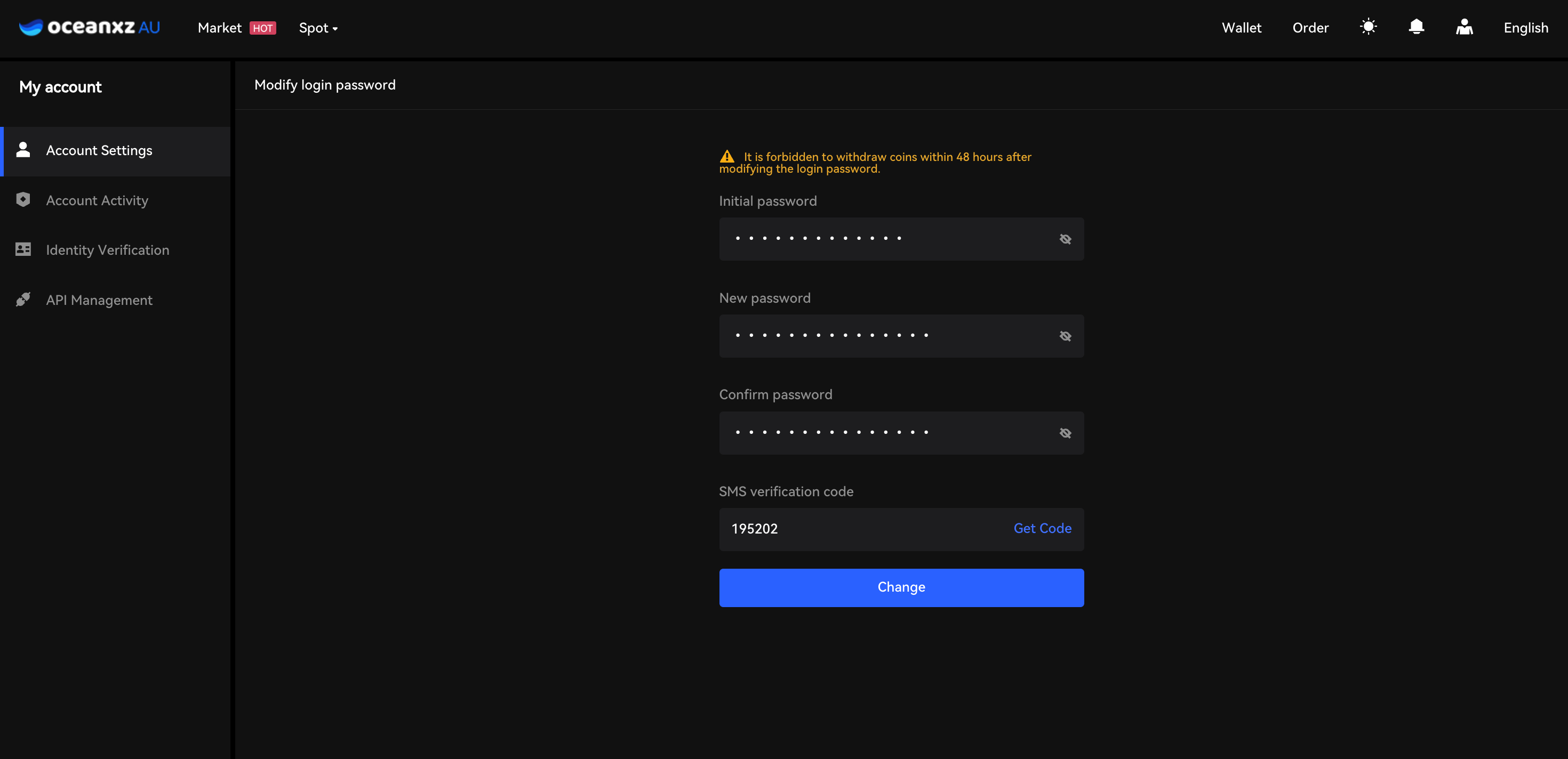
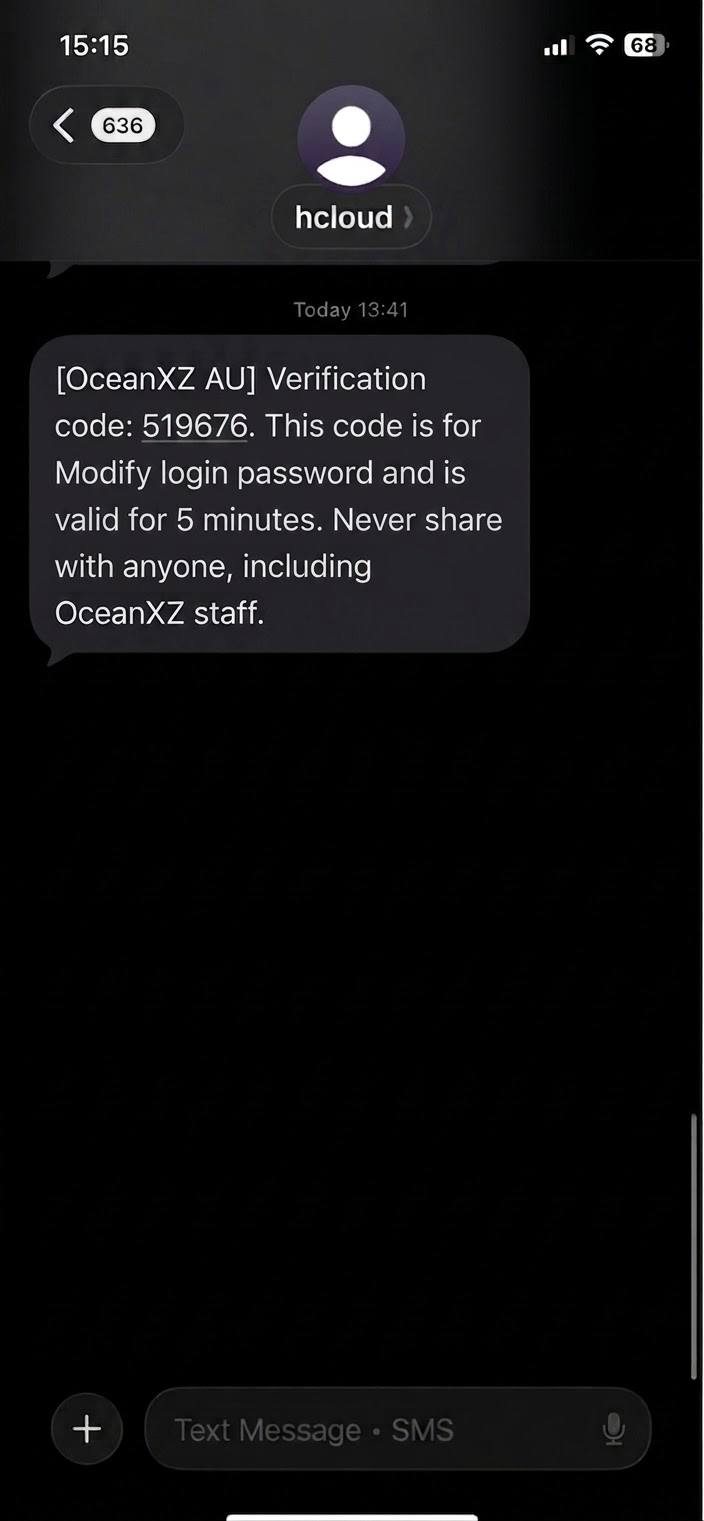
Enter your current password, set and confirm your new password, then complete SMS and Google verification before clicking Change.
⚠️ Note: For your account security, withdrawals will be disabled for 48 hours after changing your login password.
6. Log In Again
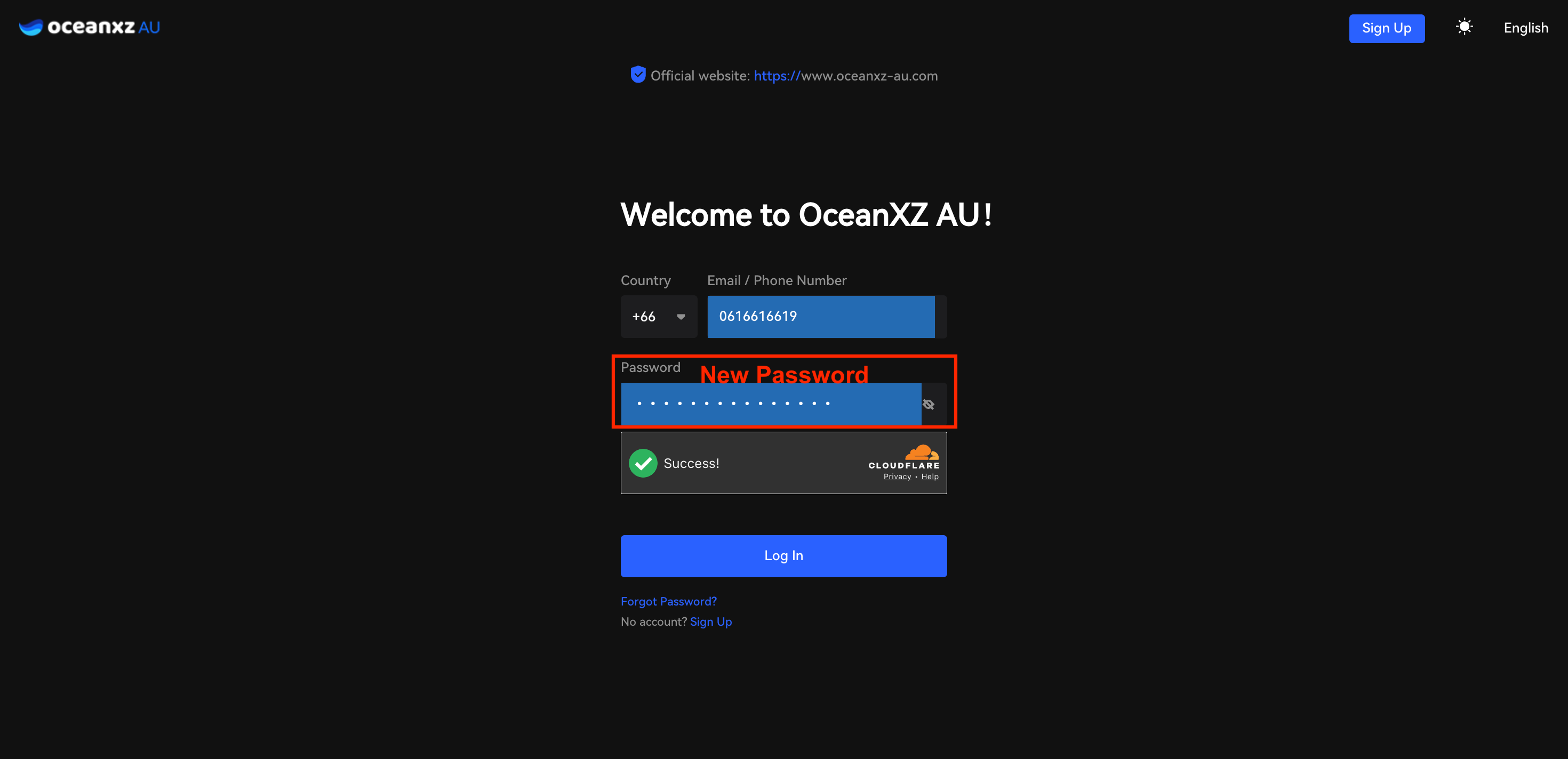
Return to the login page and sign in using your new password.
Comments
0 comments
Please sign in to leave a comment.