
Why Enable Google Authenticator?
Enabling Google Authenticator adds an extra layer of security to your account.
It helps protect your assets from unauthorized access and is required for important actions such as changing your password or making withdrawals.
Follow the steps below to enable Google Authenticator:
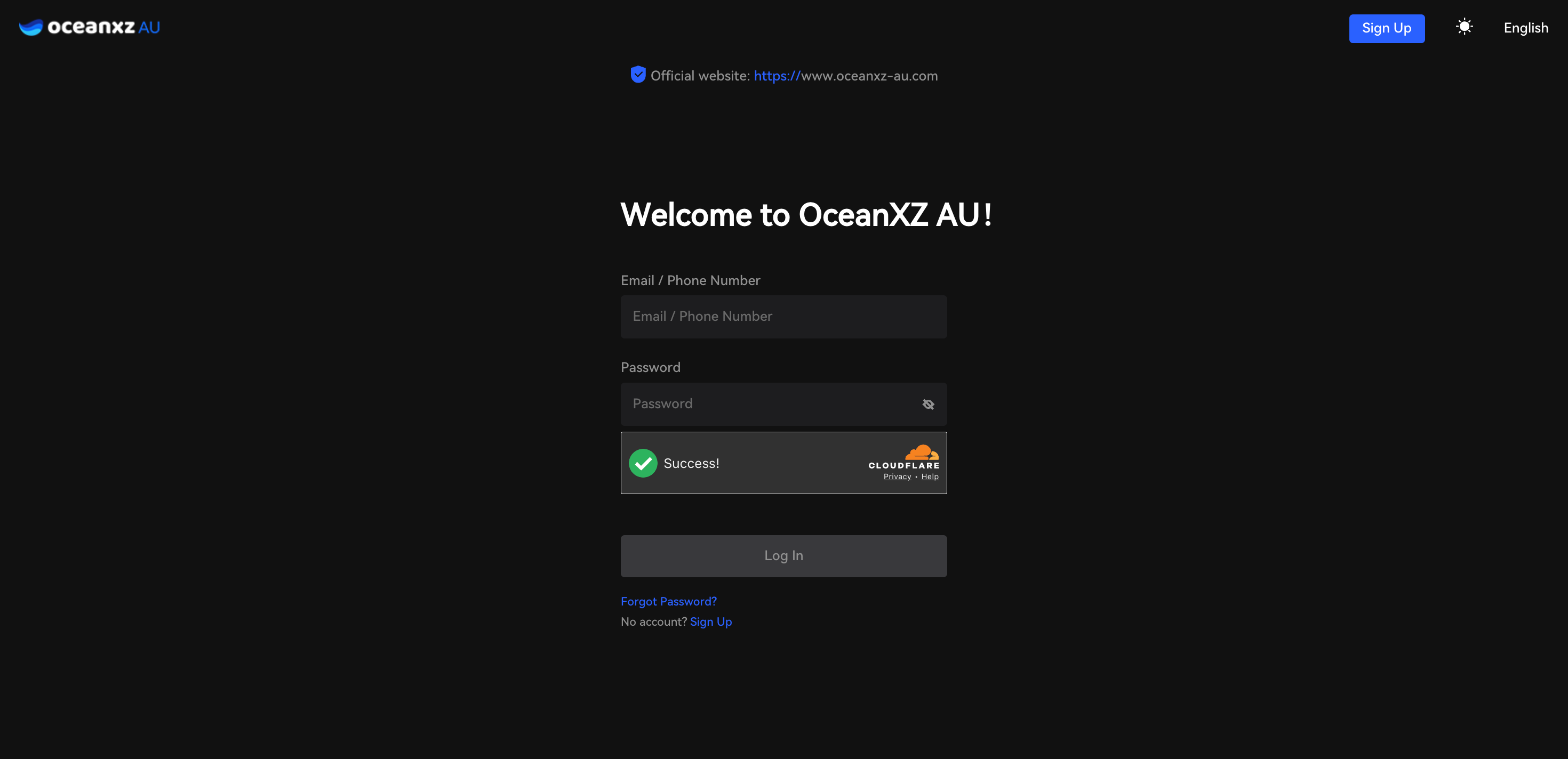
1.Log in to your account.
Sign in using your registered email or phone number.
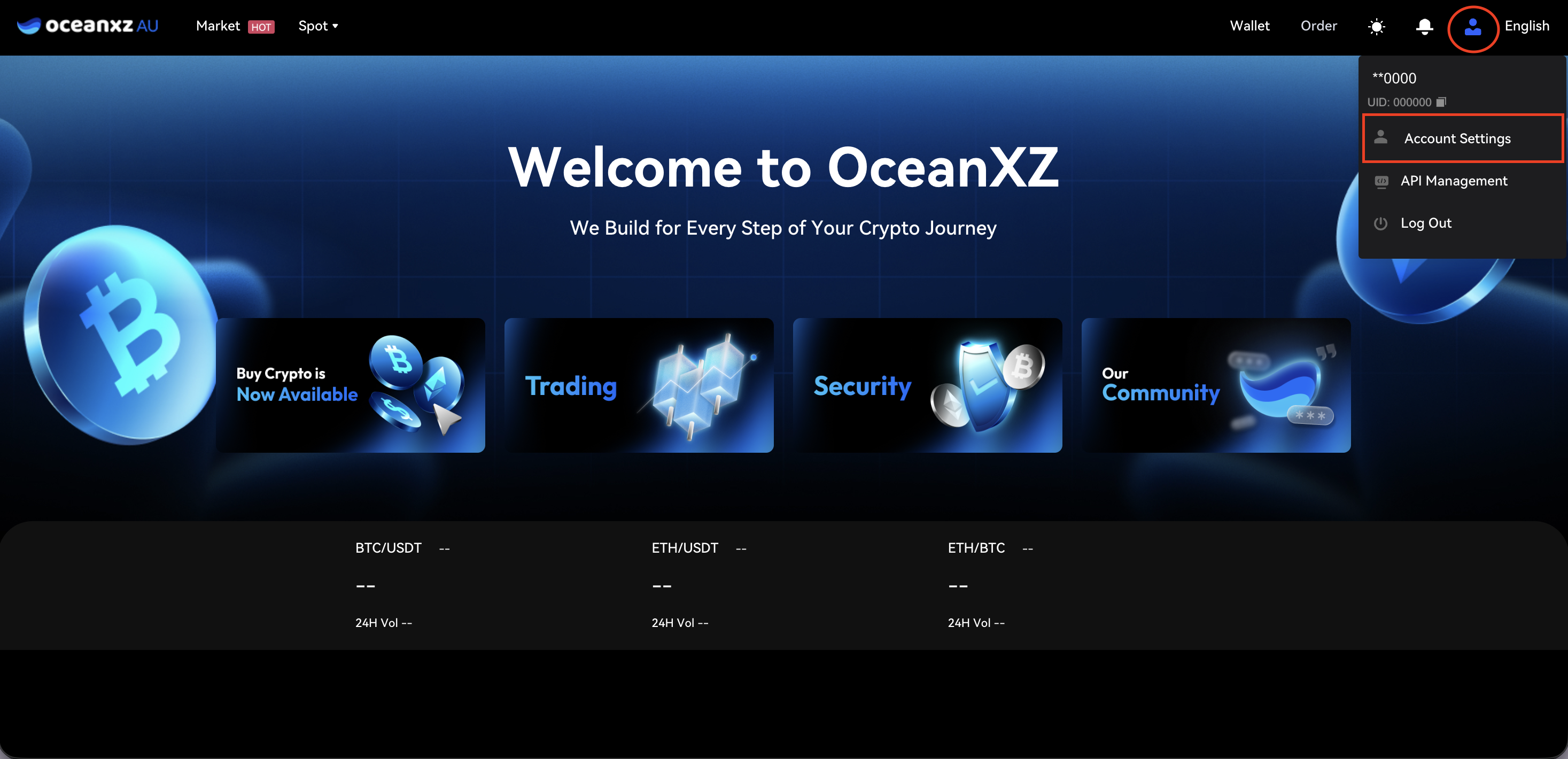
2.Go to Account Settings.
Click the profile icon at the top-right corner and select Account Settings.
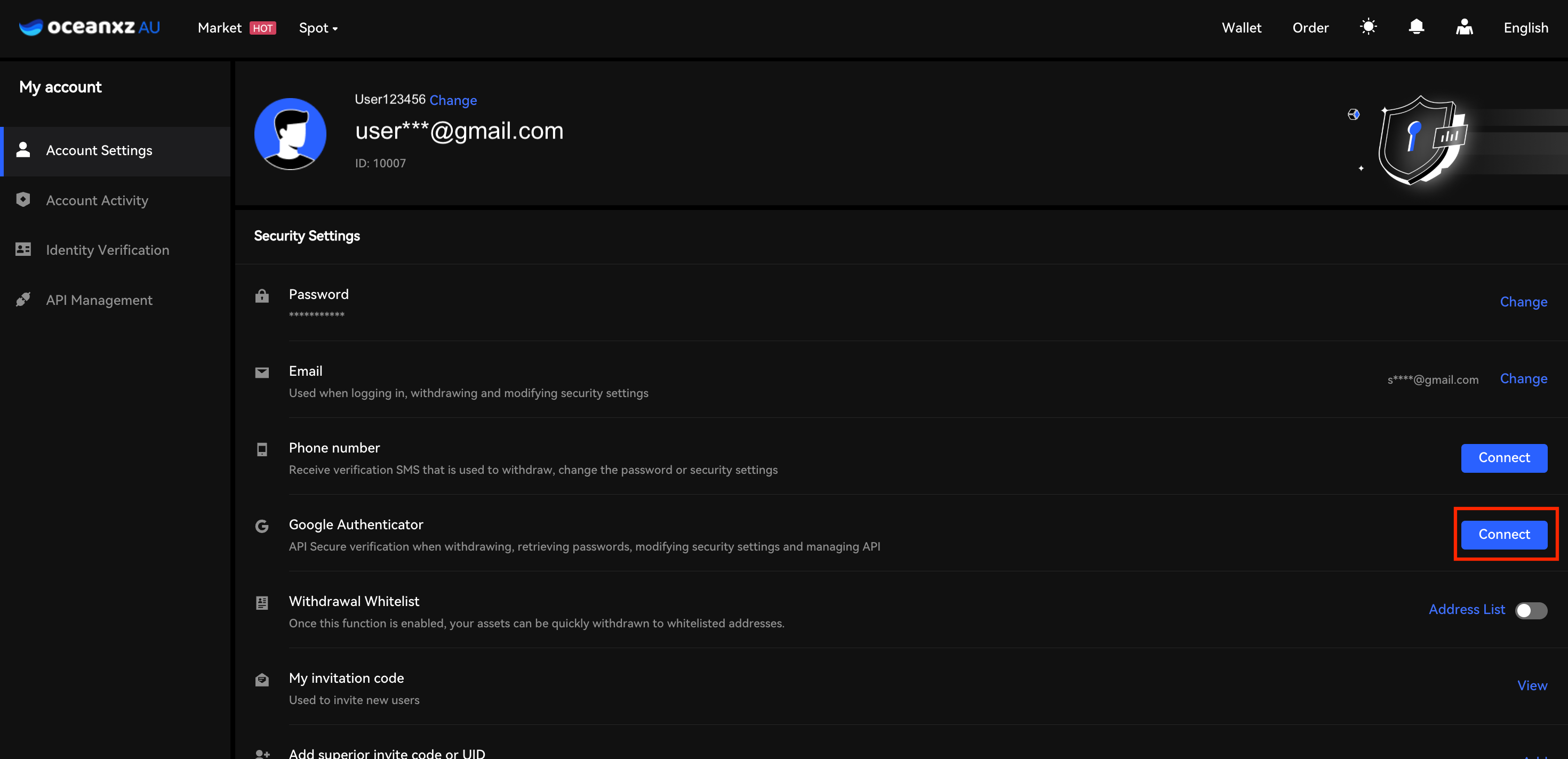
3.Under Security Settings, find Google Authenticator and click Connect.
Locate the Google Authenticator section and click Connect on the right-hand side.
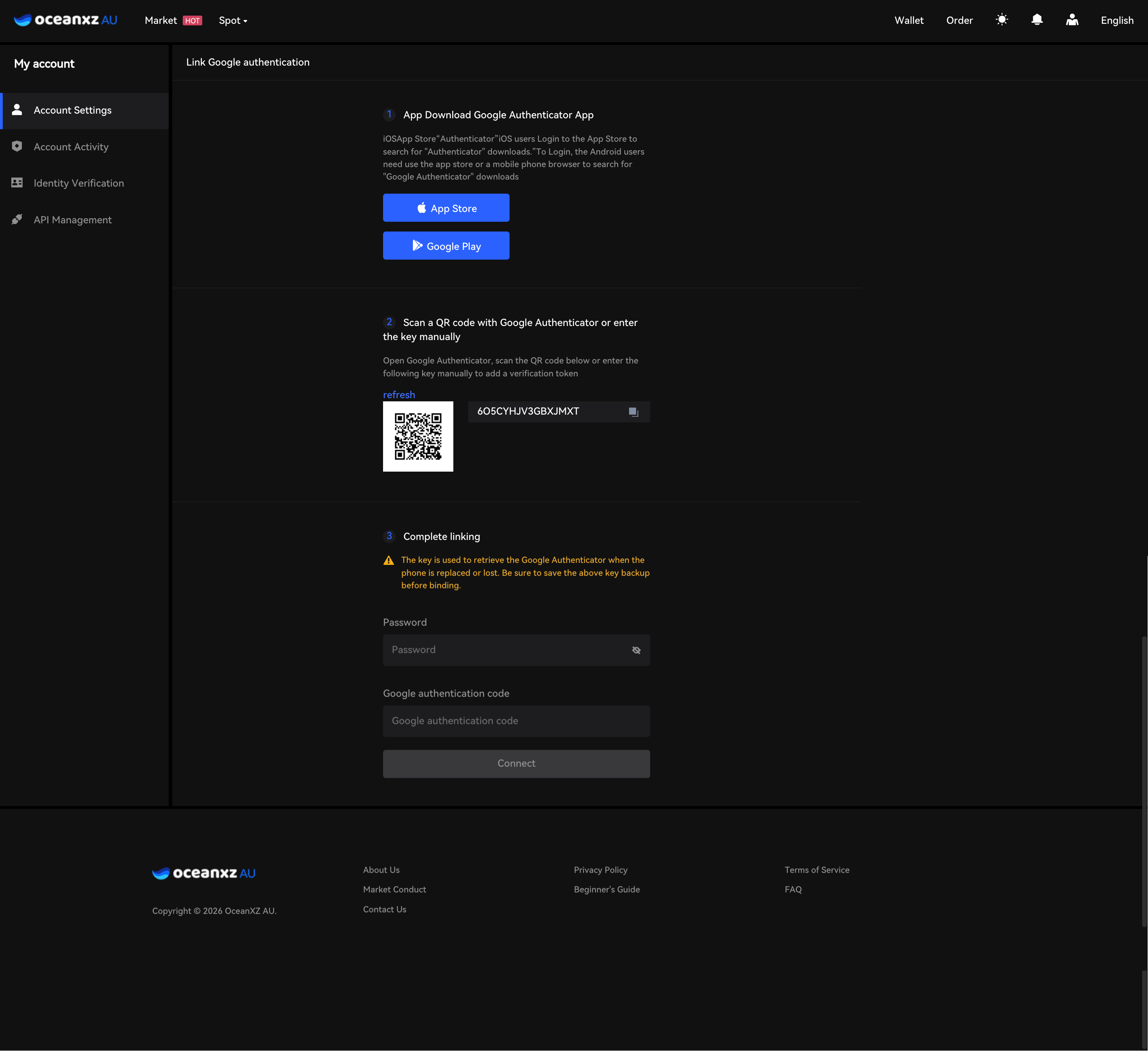
4.Download and Set Up Google Authenticator
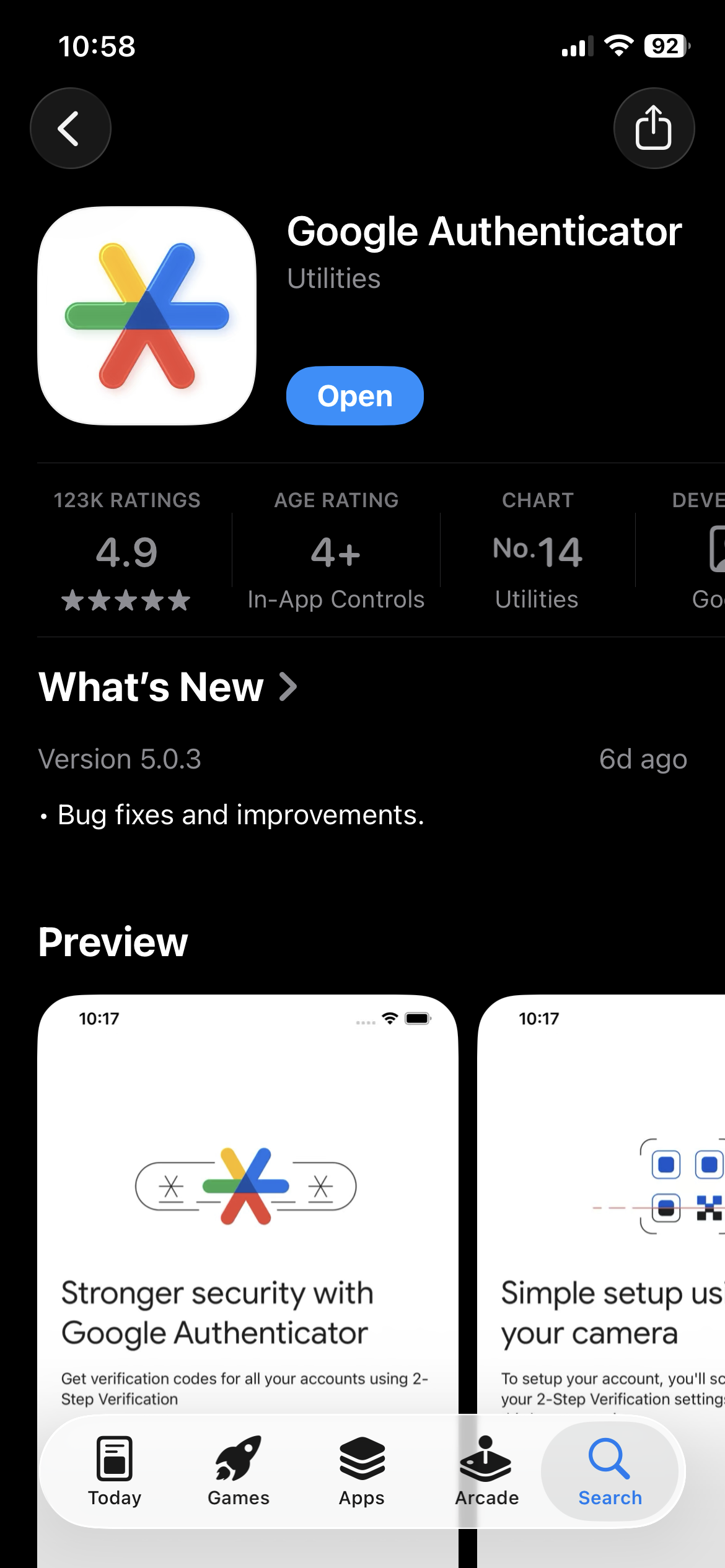
If you do not have the Google Authenticator app, download it from the App Store or Google Play.
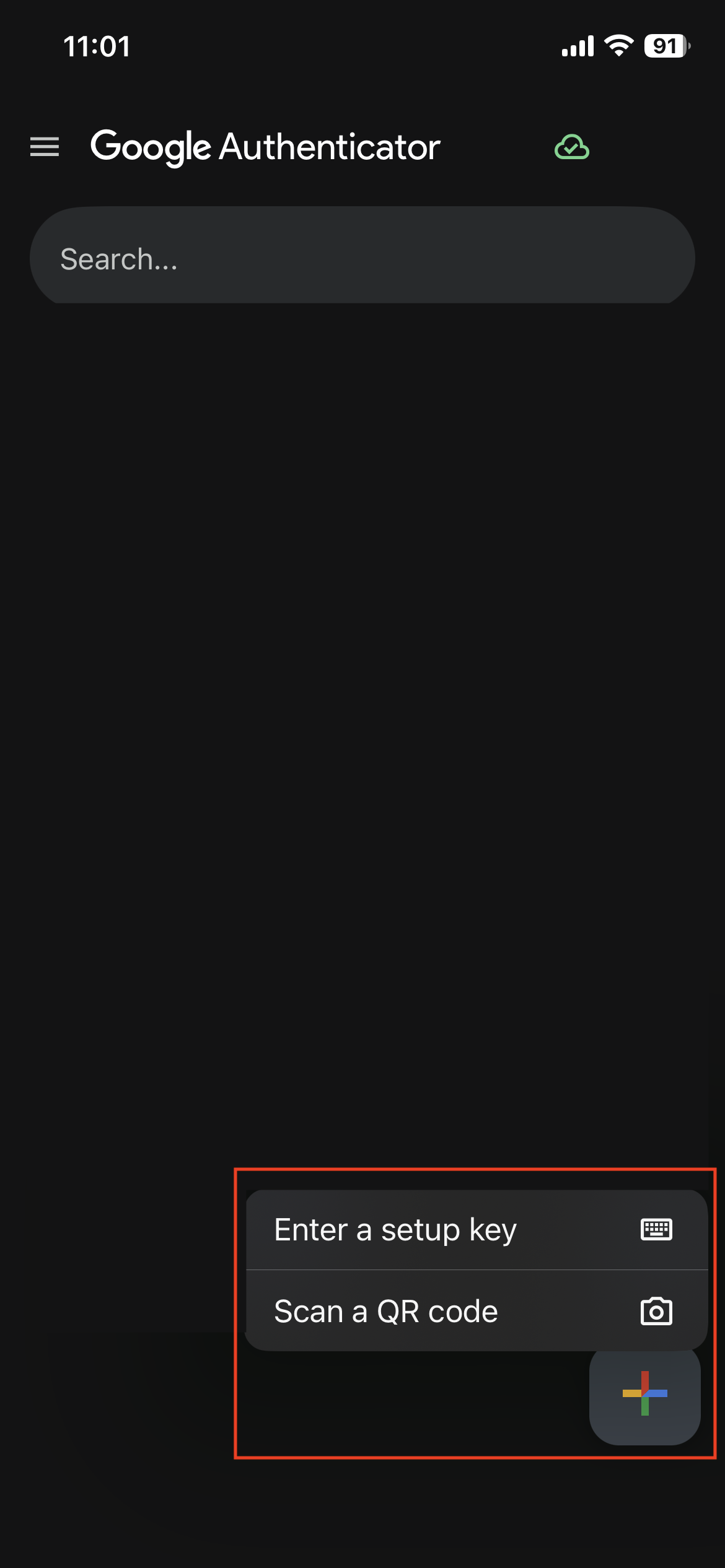
Open the app and scan the QR code displayed on the screen, or enter the key manually.
Important: Make sure to save the backup key before completing the setup. This key is required to recover your account if your device is lost or replaced.
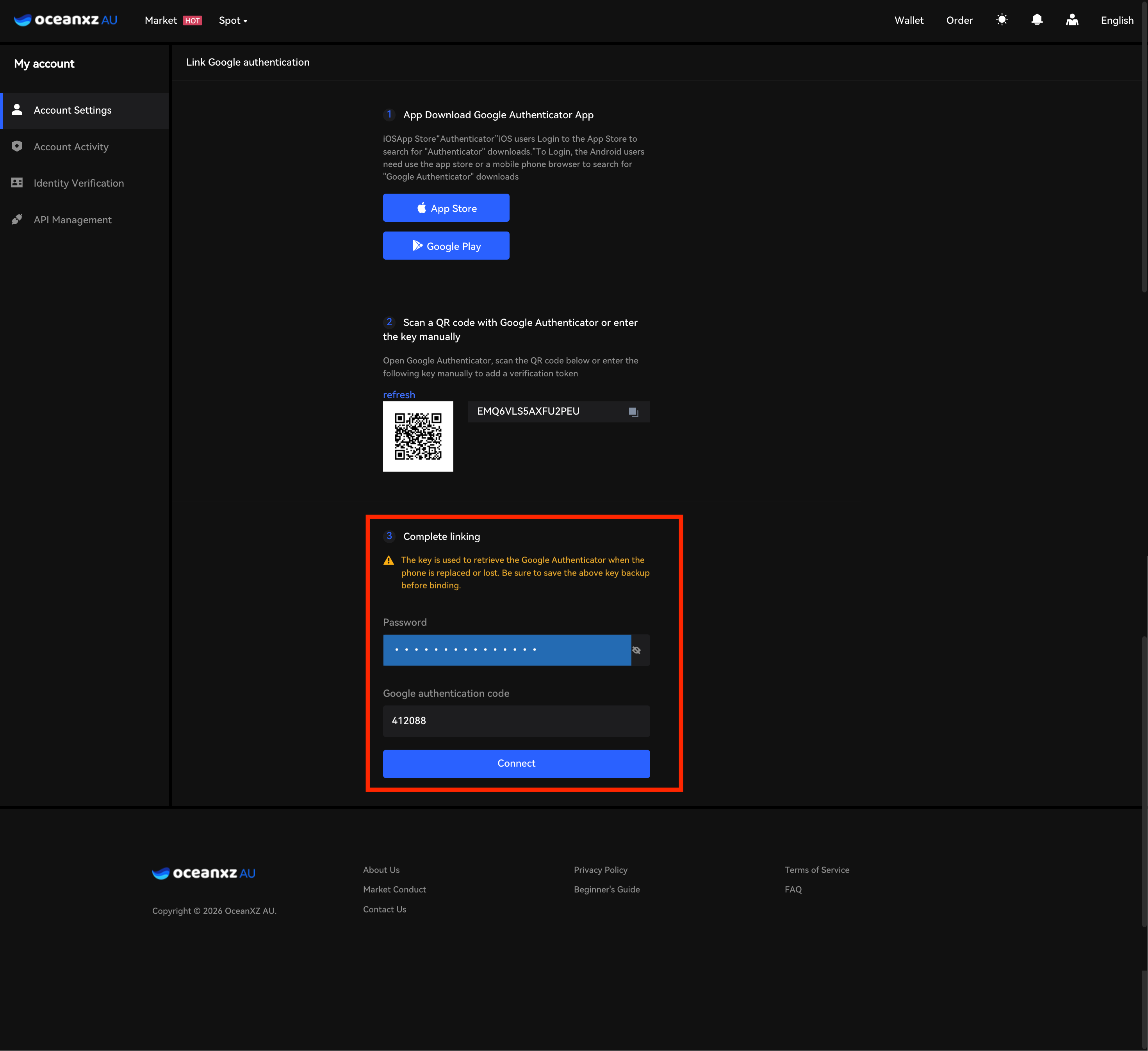
5.Enter the 6-digit verification code.
Enter the code generated by the app, then confirm to complete the setup.
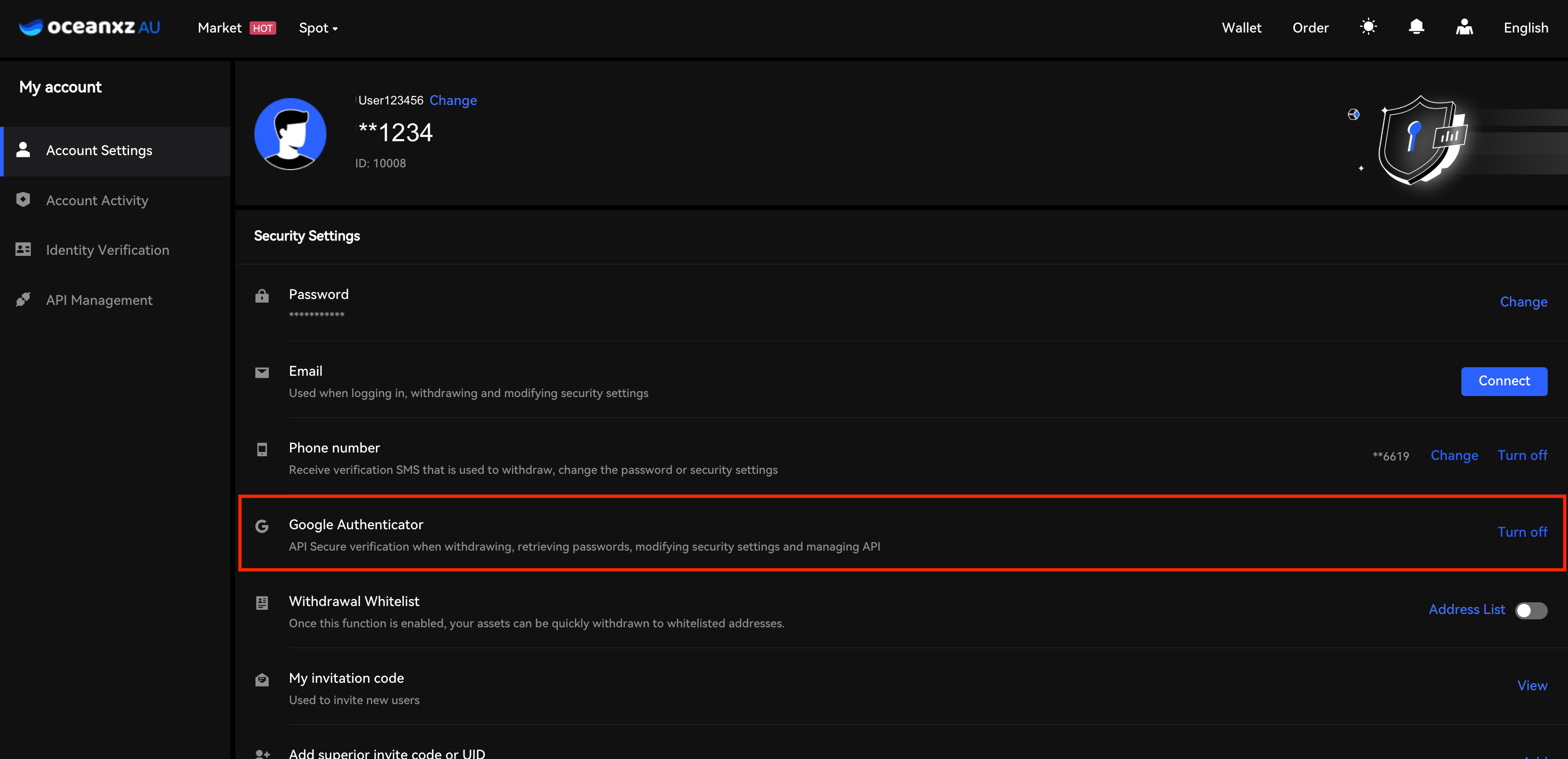
6.Google Authenticator Enabled
Once Google Authenticator has been successfully enabled, the status will be updated under Google Authenticator, and the button will change to “Turn off”, confirming that Google Authenticator has been successfully linked to your account.
Comments
0 comments
Please sign in to leave a comment.