
Follow the steps below to update your registered email address:
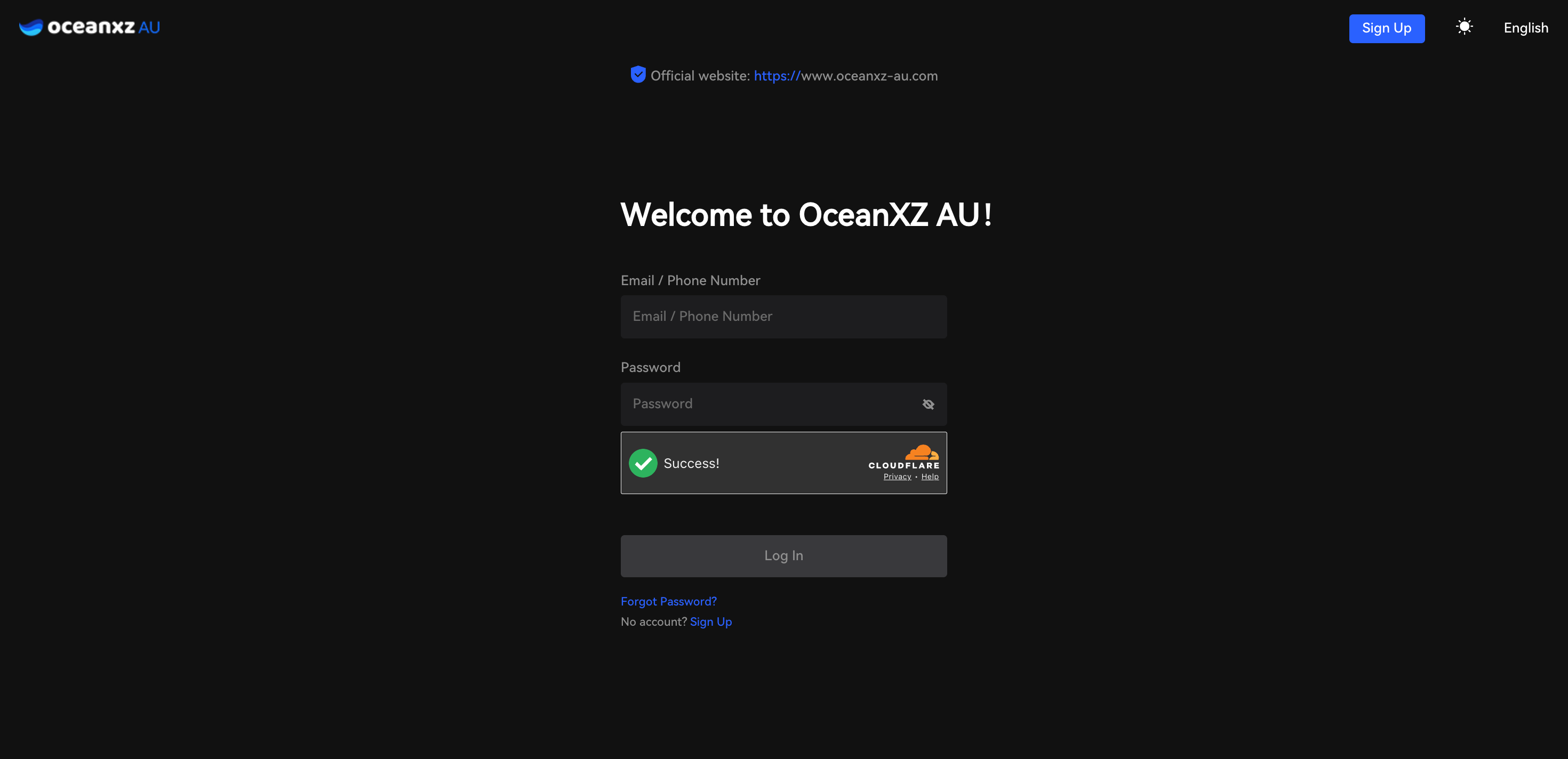
1.Log in to your OceanXZ account.
Enter your email and password to access your account.
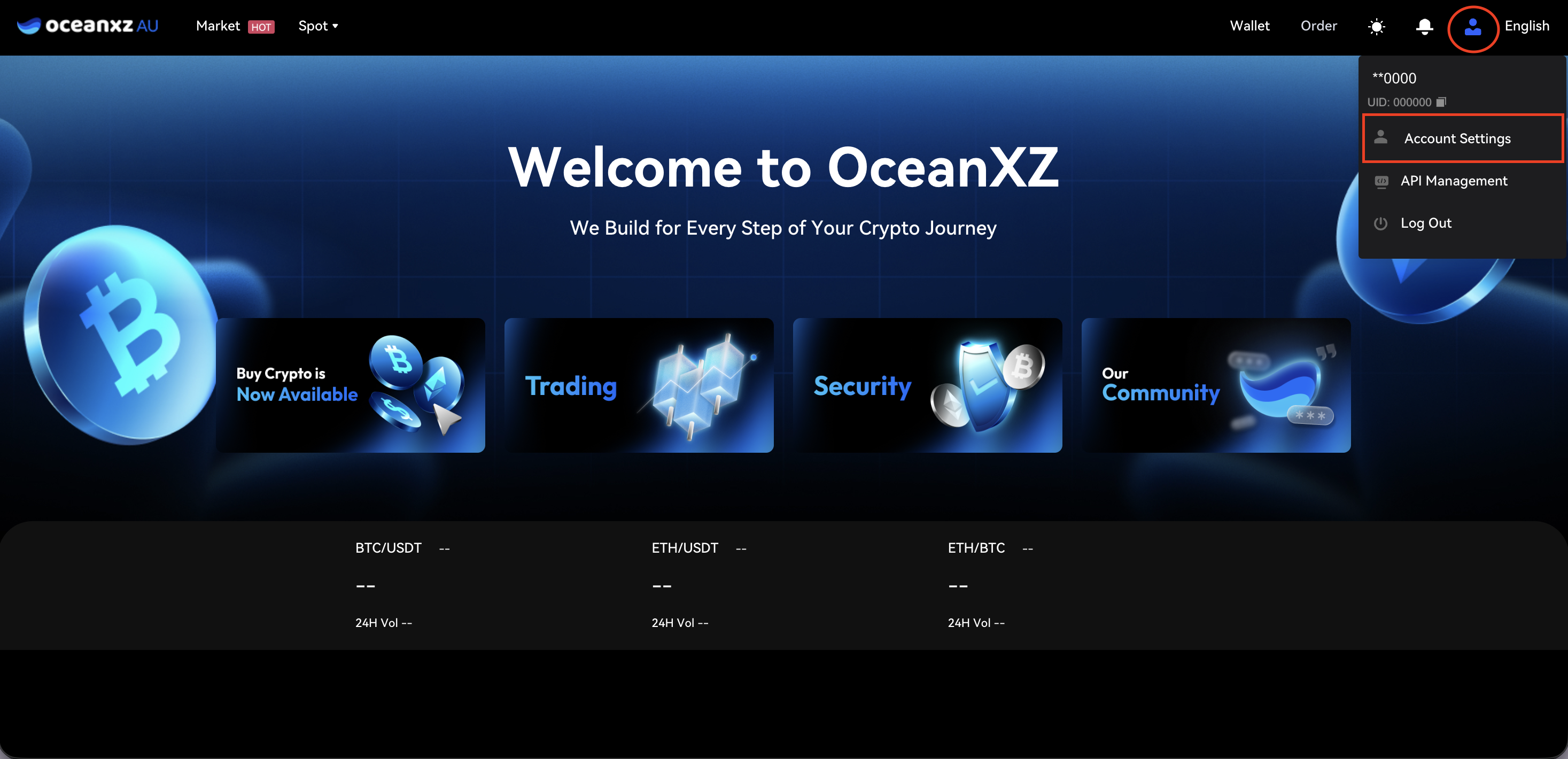
2.Go to Profile → Account Settings.
Click the profile icon at the top-right corner and select Account Settings.
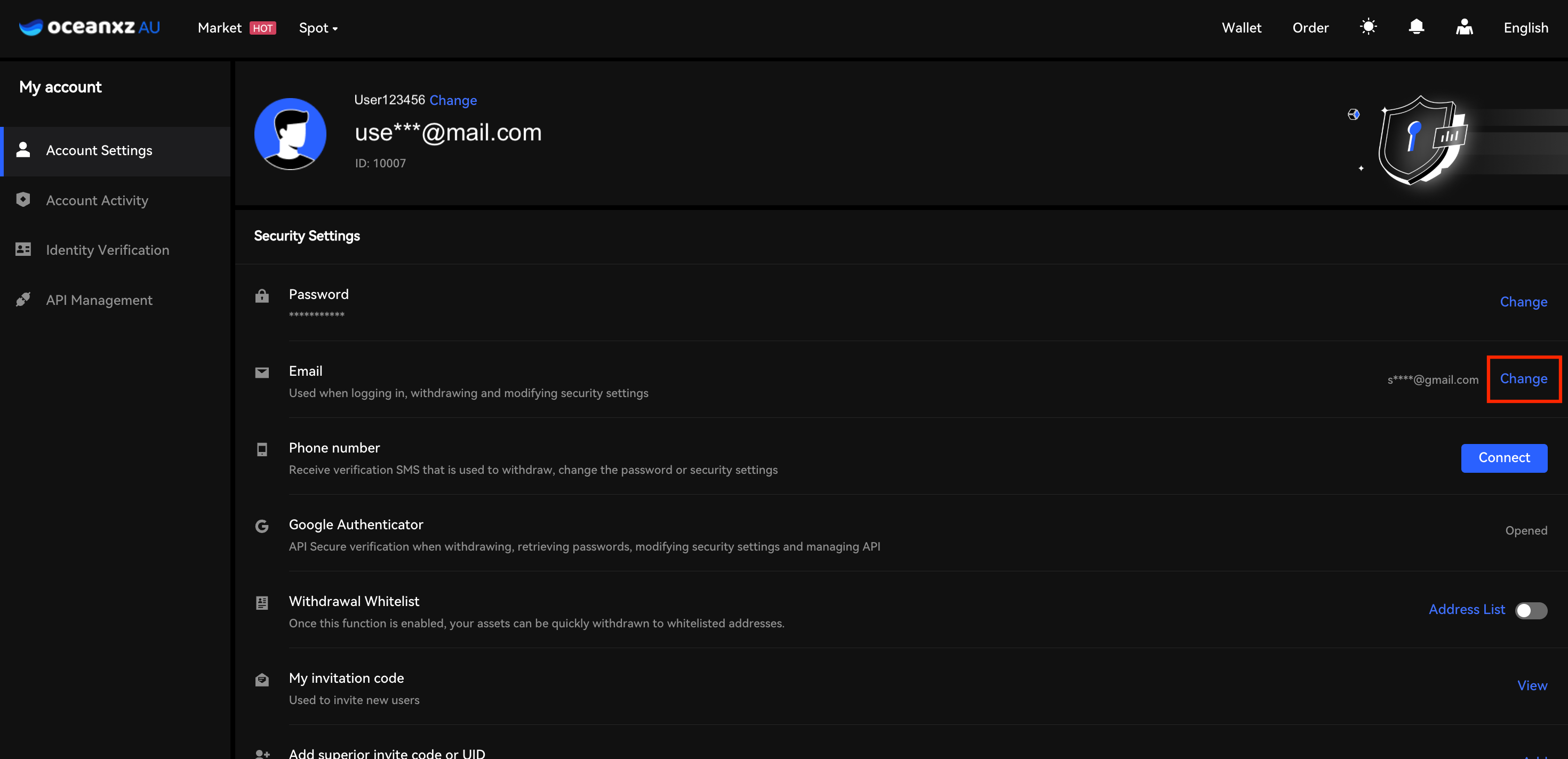
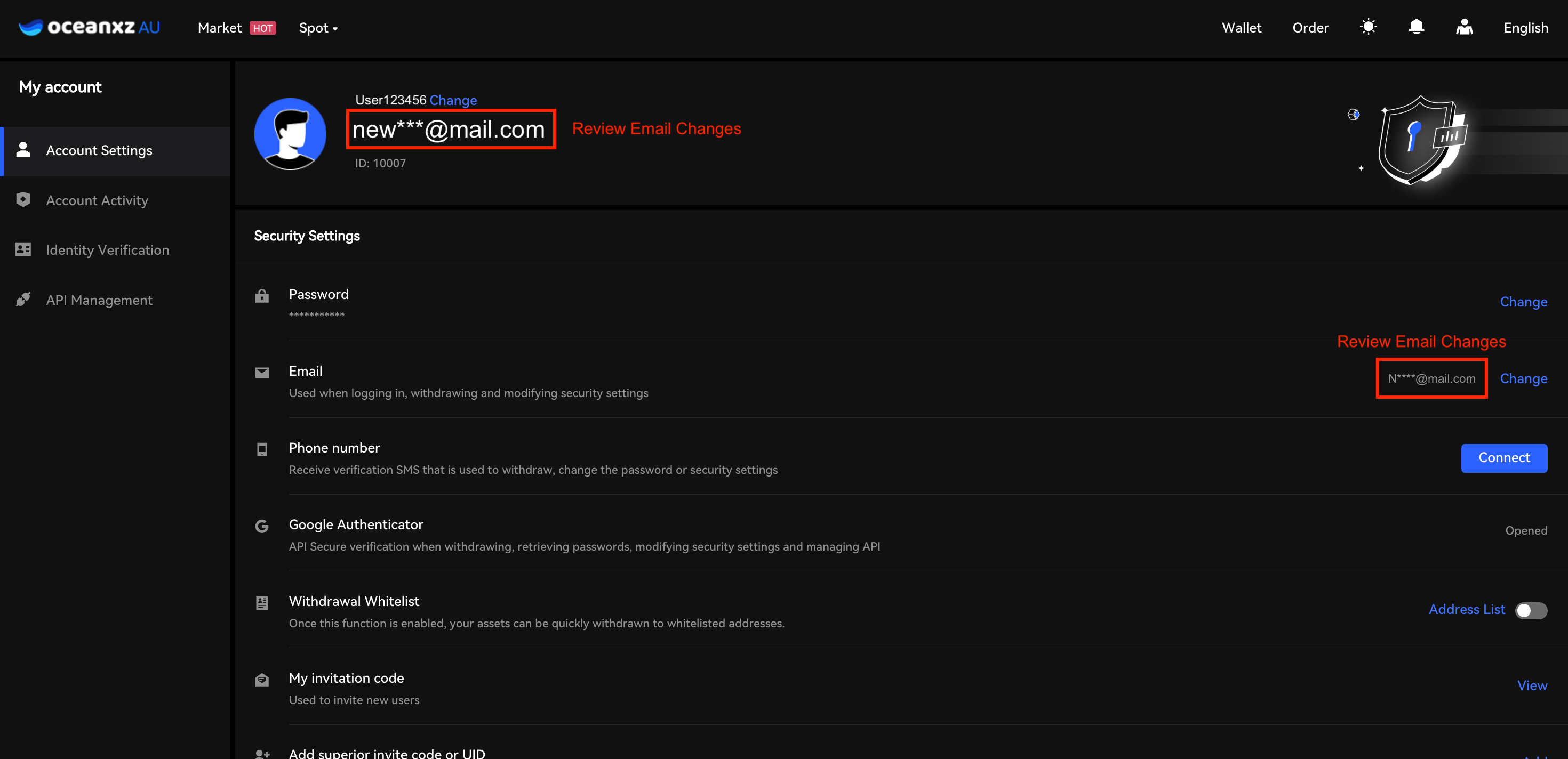
3.Under Security Settings, find Email and click Change.
Locate the Email section and click Change on the right-hand side.
4.Verify your current email and enter your new email address.
Enter the verification code sent to your current email, then input your new email address and complete the new email verification.
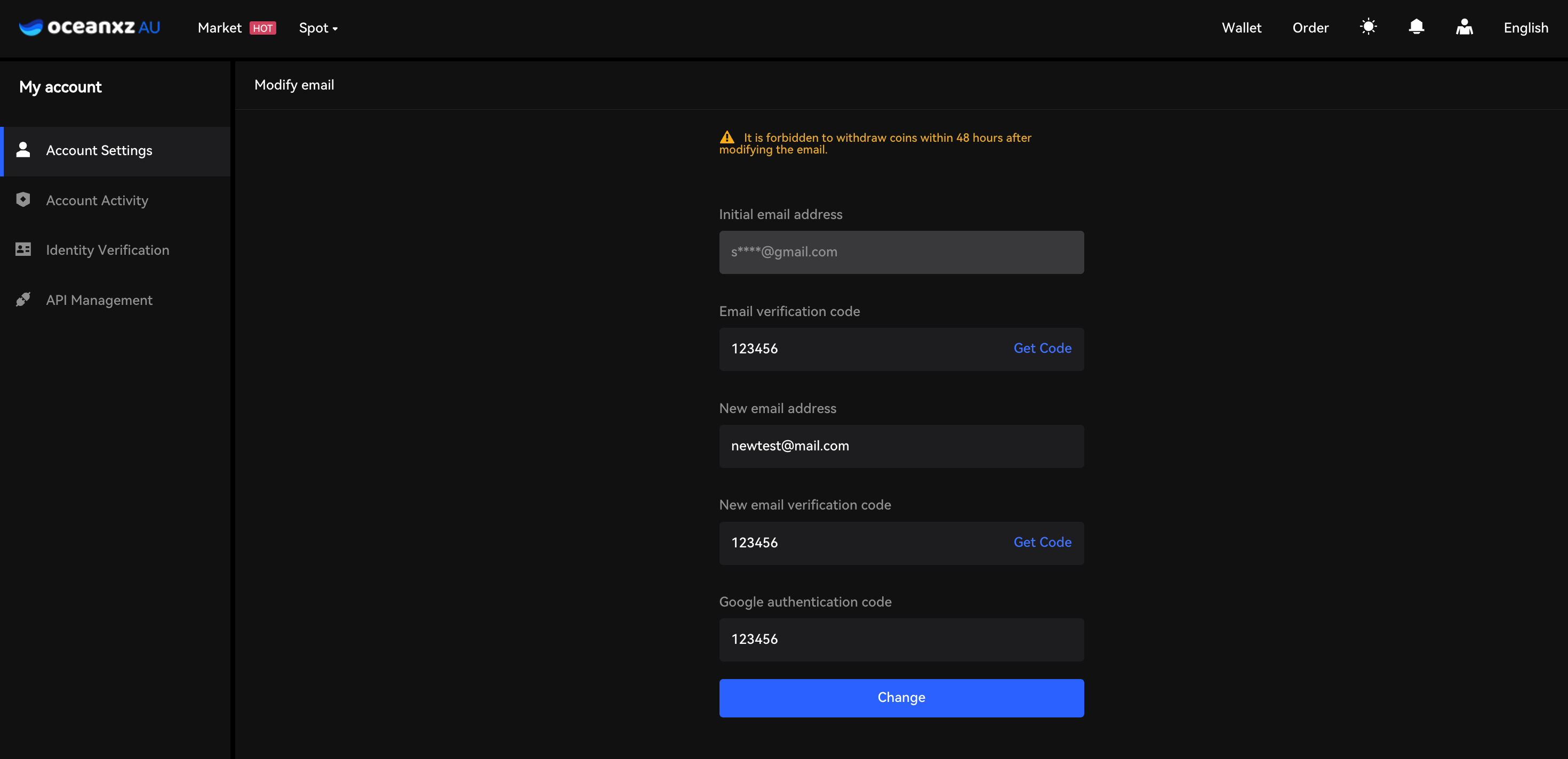
5.Click Change to confirm.
After the update is successful, you will be redirected back to the Account Settings page, where you can verify that your email address has been successfully updated.
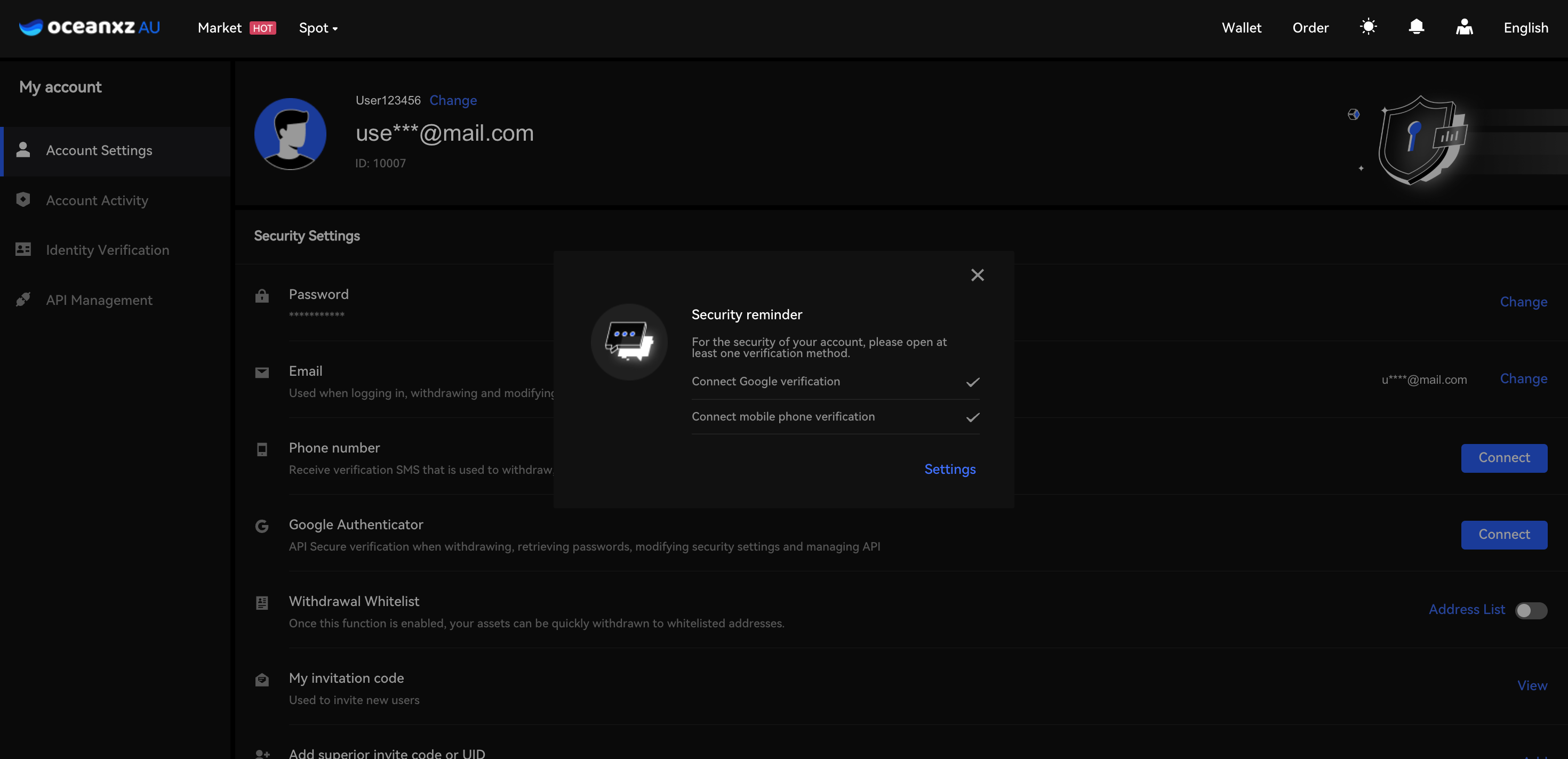
Note: When changing the email address, the user must complete either Phone Verification or Google Authenticator (GA) Verification.
Comments
0 comments
Please sign in to leave a comment.